Just the part you need.
Click the menu bar icon or press your global shortcut. Drag to select an area. Resize the crop without losing the original capture.
⌘ ⇧ S
Default capture shortcut · customisable QuickSnip
A screenshot is just the start.
Make your point with a highlight, an arrow, a few words.
Then get straight back to what you were doing.
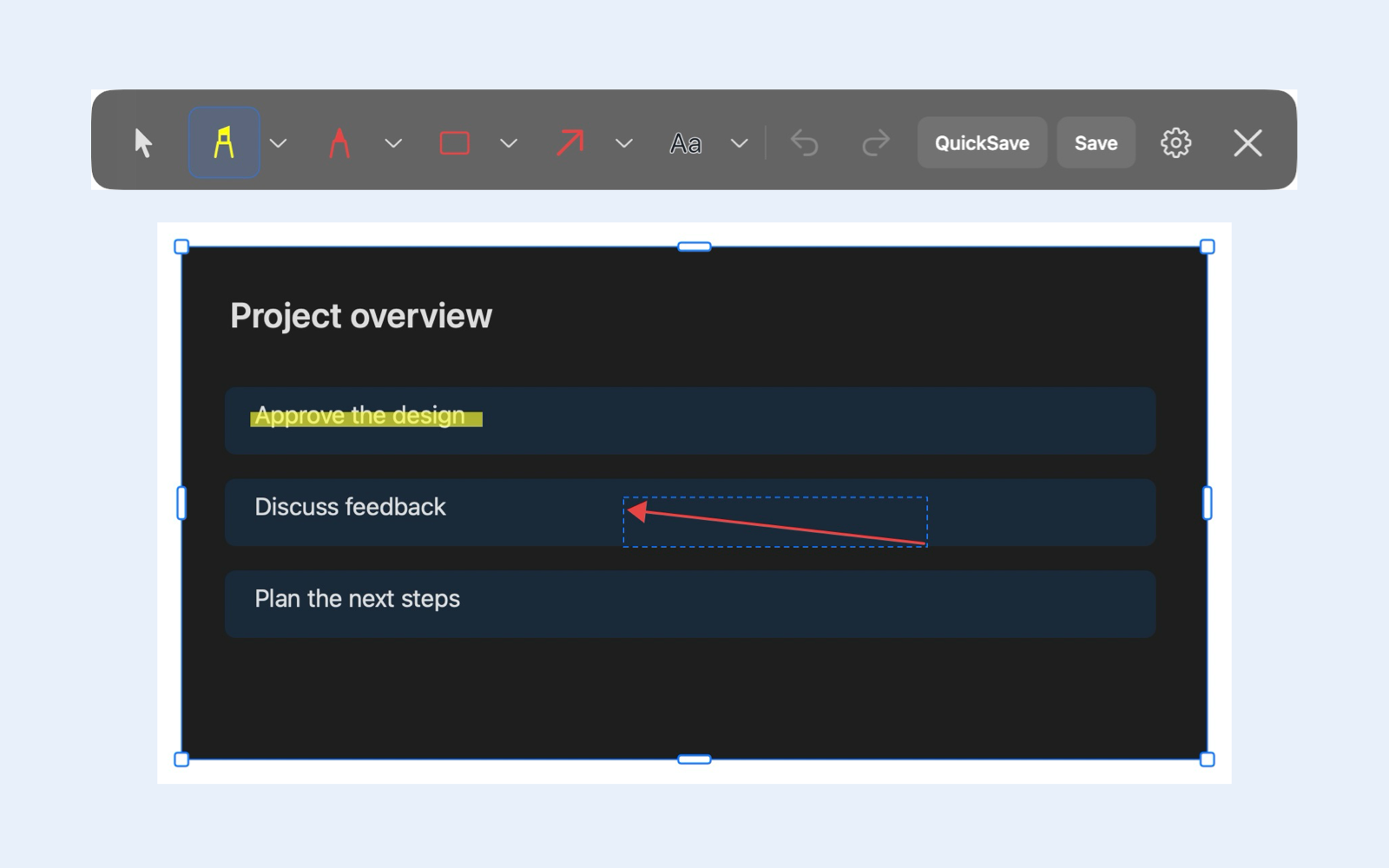
From a quick explanation to thoughtful feedback, keep the useful part and leave the rest behind.
Click the menu bar icon or press your global shortcut. Drag to select an area. Resize the crop without losing the original capture.
Highlight a detail. Draw an arrow. Add a rectangle, freehand pen stroke or text. Adjust colours, sizes and opacity with a live preview.
Your edited image is copied automatically. Paste it into your own app, or save a JPEG to your chosen folder with QuickSave.
A floating toolbar keeps your tools nearby. Keyboard shortcuts keep you moving. Undo and redo give you room to get it right.
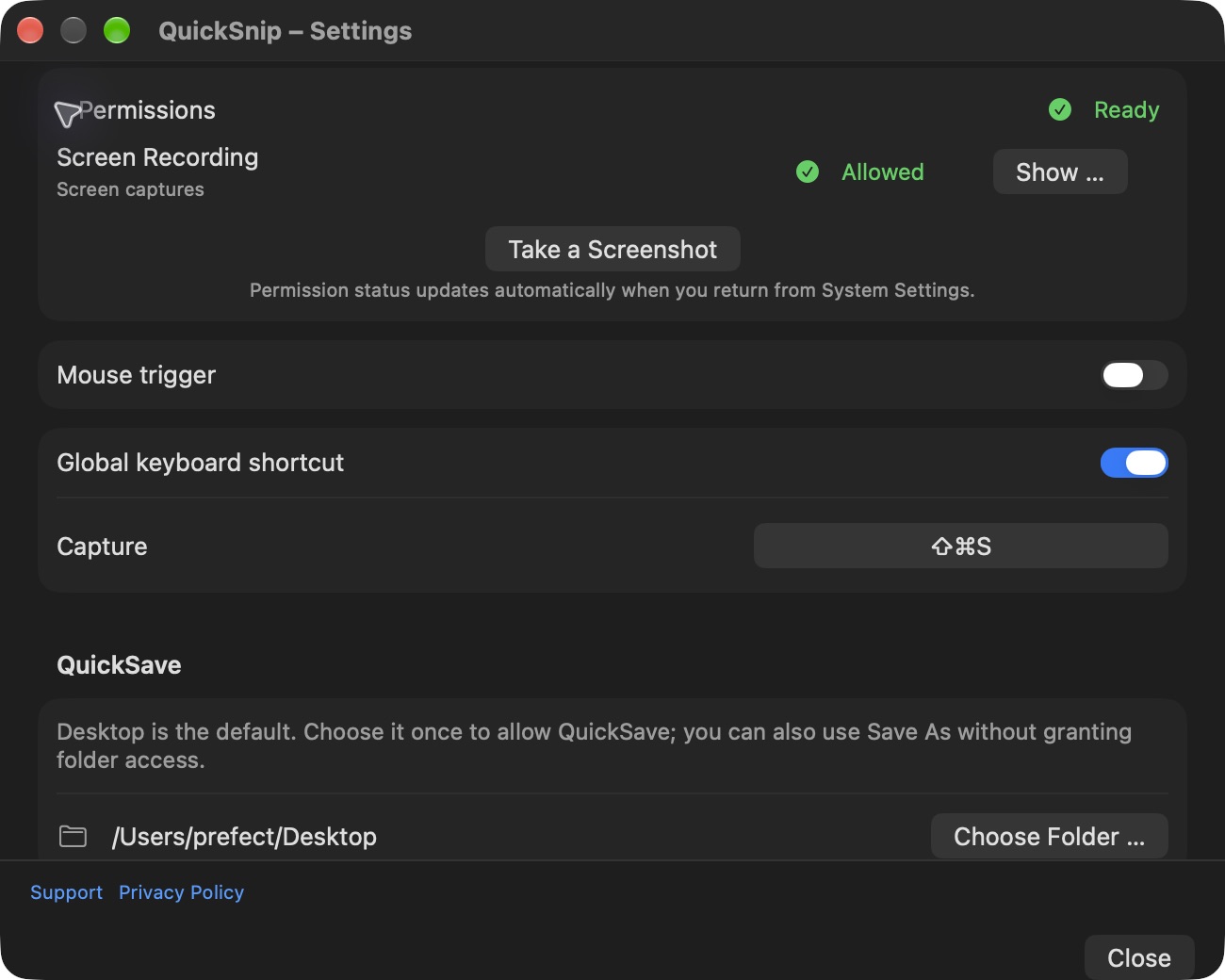
QuickSnip processes your screenshots on your Mac. There is no account, cloud service, screenshot history, advertising or analytics.
Screen Recording is requested for capturing your screen. Folder access is limited to the location you choose for QuickSave. The App Store version does not ask for Accessibility or Input Monitoring.
Read the privacy policyWe would like to hear it. Get help with QuickSnip or tell us what would make your workflow easier.
info@iteconomy.ch ↗Please do not send passwords or sensitive screenshots.